Google Custom Search and WordPress Integration
Update: There is a new Google Custom Search plugin for WordPress that you can install and skip the lengthy instructions here.
The default WordPress search engine barely qualifies as a search engine. It’s results are not that relevant, the search page shows the actual blog entries instead of a list of links of resulting pages and the experience gets worse if the search query gets the least bit creative.
I think everyone should deprecate the WordPress search engine and move to Google Custom Search. There is simply no comparison. You can see the search results for AJAX on my website.
How-to for Google Custom Search Implementation in WordPress
Having recently implemented it on my site I don’t think it gets much better than this. Implementing it in WordPress is trivial and the results are of the highest quality.
- Head on over to http://www.google.com/cse/ and register for an account. Follow the prompts all the way until asked to select the kind of layout/code options.
- The best Google Custom Search configuration I think is to select the iframe option with advertisements placed on the right. Secondly, you will want to specify the search results url as something like http://yourdomain.com/search.php. More on that in a minute.
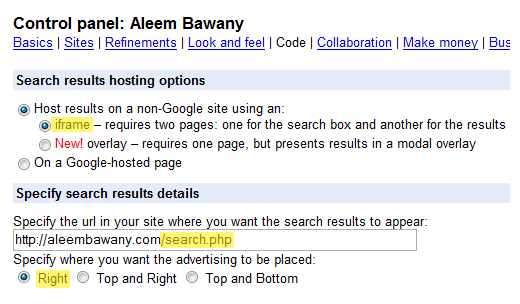
- Subsequently you will be shown two textarea’s. The first one is the search box code which shows the input field where queries are entered. You can paste this code in your header or index template (header.tpl or index.tpl in the wp-content/theme/ directory) depending on where you want the box to show up.
- The second code box is for the search results page. To display the Google Custom Search results on a fresh page, create a file called search.php in the root of your web directory (this corresponds to the results url you entered above). Within this page you should paste both code snippets. The Google Custom Search box code will display the search box to the users once again so they can see their own query. The Custom Search results code will display the actual results below the box. This is what your search.php will look like:
// these two lines get the theme page initialization code and header require('./wp-blog-header.php'); get_header(); ?> <!-- Google CSE Search Box Begins --> ... <!-- Google CSE Search Box Ends --> <!-- Google Search Result Snippet Begins --> ... <!-- Google Search Result Snippet Ends --> - That’s it, you’re done.
Your page won’t be instantly indexed and may take a day or two, but that’s a small price to pay. And if you show your 5-10 most recent blogs in the sidebar then you’re good anyway because users can navigate directly.
Update @ 8 Dec, 2008: You can store search.php in your themes folder and tidy up the URL to /search/ instead of /search.php if you follow these steps:
- In step 1, the URL should be <your_domain>/search/ instead of <your_domain>/search.php
- In step 4, create a search.php file with the following code and save it in /wp-content/themes/<your_current_theme> folder:
get_header();
/*
Template Name: Search Template
Description: A template for the search page
*/
?>
<!-- Google CSE Search Box Begins  -->
...
<!-- Google CSE Search Box Ends -->

<!-- Google Search Result Snippet Begins -->
...
<!-- Google Search Result Snippet Ends -->
get_footer();
?>
- Go to Write -> Page and give the page the page the title “Search” and make sure the permalink reads /search/
- At the bottom of the page select Page Template -> Search Template
- If you previously had a search.php in your / folder you can delete it (but make sure you have a backup somewhere just in case).
- Navigate to /search/ to make sure it all works
[…] thanks to Aleem Bawany for tips on how to do […]
hi..thanks..i would like to try this solution. I tried “On Google hosted page” as hosting options with black color as background. I dropped the code in Text1 widget on my sidebar. Now issues is as my site background color is black, i cannot see when i type in search box. If you would suggest me, it will be appreciated.
Thanks, Aleem! it worked! just check my website at http://www.recipes4busymoms.com
Nice & helpful post. I tried a search on your website & the results returned with an error on the top of the page (some permission issue). You may like to check that.
Cheers!
Jay
http://www.prodigitalblog.com/
http://www.prodigitaltips.com/
This is one of the rarest & the BEST explanation of implementing the Google Custom Search. I have compared a few other’s and this is way better than the other tutorials. I have implemented it on http://www.prodigitaltips.com/ just by following this post step by step. Well I have some problem with the footer, but I will probably get through that too.
Great post.
Cheers! Jay
http://www.prodigitaltips.com/
Many thanks sir!
This was just what I was looking for – and it works fine! Although I did need to pop a formatting in to get everything to stay within the boundary of my fixed width site.
All the best,
Alex
i think this is the best solution for a wordpress blog and should be on top of the google search results instead of those from seomoz and dosh dosh who is not of help and was a very naive tutorial for wordpress blogs.there tutorial was not for wordpress blogs. imagine, they said that the “google search results code should just be pasted on a wordpress page made. as in one should just create a page and paste it just like in making a blog post!!! how ignorant. you just don’t have to justr paste the code just like that because it will not work that way for wordpress. imagine seomoz and doshdosh teaching that!!
your tutorial is the correct tutorial. great work!
Nice post!! Just what I needed, Thanks!
WordPress users can actually go I more step and integrate the Adsense Search to the WordPress page itself , so the search has your ads on it ( its a good way to monetize the traffic who use search on your site )
Look @ the search on my blog or this image to see what i mean : http://img80.imageshack.us/img80/9720/searchintegrationso7.png
[…] found a post by Aleem Bawany quite useful (for the end part I made a WordPress page and used a page template to insert the […]
Thank you! worked well with my WordPress 2.7 RC1 installation. I’m currently investigating a method whereby a ‘search.php’ added to the root directory may not be required.
Hayden, the tutorial is updated now. Search.php can be stored in your themes folder which is the preferred approach.
Hello Aleem,
A quick question for you!
I use “Domain Mirror” to allow for multiple domains on a single WP install.
Is it possible to have the Google Custom Search only do a search on a specific domain, and return different results or even different categories for each search query?
Thanks,
Michael
Michael, you would probably need to make a few changes to the behaviour of search forms. Not familiar with domain mirror, but in your PHP code, you would need to check what the current domain name is and based on that show the code for the relevant custom search (which means you’ll obviously have to create multiple custom search engines).
[…] search plugin replaces the wiki search plugins. Easy to use follow these steps so you can integrate the search with blog. You will need to create a google custom search, the […]
Great plugin, but how do I manually replace the search box on my wordpress template if it is not done automatically?
@Ace, sometimes WordPress doesn’t correctly activate the plugin because of a conflict with other plugins. It happens on rare occasion but it does happen. If you really must, you can change the form in the sidebar.php file to the following (be sure to replace the your_cx_value with your own cx value from your googlecode:
<form action=”http://tech.localhost/search/” id=”searchform”>
<div>
<input type=”hidden” name=”cx” value=”your_cx_value” />
<input type=”hidden” name=”cof” value=”FORID:9″ />
<input type=”hidden” name=”ie” value=”UTF-8″ />
<input type=”text” name=”q” id=”s” value=”” />
<input type=”submit” id=”searchsubmit” name=”sa” value=”Search” />
</div>
</form>
Being a beginner at WP it took me awhile but I finally almost figured it out.
Two questions
1. If I search the first time and end up on the /search/ page the ads are displayed on the right altough my adsearch settings are top and bottom. When I search the second time on the /search/ page ads are displayed the way I want. How can I fix the first search?
2. Ads do show up but no content from my site is. Do I need to give more details on how I set up your search or is this maybe something you´ve been asked before?
ps. I also had to copy the form you have in your last post also found in the goglesearch setting in wp to my sidebar.
Thanks for a great plugin and im sure Ill get this baby up and starting with some patience and help.
@Linus, I am not sure about the first question. Since the results are hosted in an iframe the behaviour should be virtually identical each time.
The second case only happens when you search for words that don’t occur on your website or haven’t been indexed by Google. A link to your site might help if the issue persists.
Yes, it should be identical each time. I was wondering if it had anything to do with the plugin or form I manually put on the startpage, and I guess this is not the case. But if you go to matprocessen.se and search for example hamburgare then the ad will show on the right side. Next time you search within the /search/ it´s top and bottom. If you go directly to matprocessen.se/search/ and search for hamburgare the ads are displayed correctly at the top and bottom the first search. So the “error” only occurs when you search from the main page and jumps to the /search/ page.
About the second question you might be right. Maybe it takes time to index the site altough at the moment it contain about 4 posts.
Thank you foryour time and patience.
The problem may be in the code you pasted for the CSE Search box in the configuration tab. The part that reads FORID:9 should be FORID:11
How right you are. It´s all good now. Thank you for all the help.
Hi Aleem,
I am Nihar from Niharsworld.com. I got to this page from Google.
I tried integrating custom google search. By creating a search template also removed getsidebar call to remove sidebar but didn’t know how to achieve it.
I hope your solution will work. I will let you know whether i succeeded or not . If don’t then will ask you for some more help.
Thank you very much. I hope to see you on my blog soon!
[…] Yo lo he limpiado y he dejado casi nada sólo la cabecera 😉 (si quieres que sea dinámica click aquí) […]
Hi Aleem,
Trying to activate the google custom search plugin gives a ‘fatal error’ in wordpress and the plugin fails to activate. What to do?
Thanks.
It requires PHP 5. You may be running PHP 4 which is the most likely culprit.
Thanks a heap! Just checked and found out that my website was set to php 4 and I had the option to choose php 5, which I did. The plugin activated fine.
Thanks for your help:)
[…] your WordPress search engine into Google custom search follow the instructions written here. At first I was really frustrated converting WordPress search engine into Google custom search […]
Hi Aleem,
I installed your plugin however there were some chmod issues I believe and the page form was sending me can not be found.
So I went back to old method and applied everything listed here. However, I couldn’t find a way to set the permalink for the page.
Here is my search page: http://www.elephantandants.org/?page_id=44
Btw, the plugin didn’t add a new search page on my blog at /search/
This plugin works like a charm for a single custom search engine, but I want to include two custom search engines, i.e. one would be a site search and other would be to search a select set of sites. Depending on which search engine was invoked, the search box on top of the results page should refer to the same search engine again. How can I get this done? Would appreciate some insights.
Unfortunately that’s not supported at this time and it would require considerable modifications to allow that scenario. If you want to have a go you could try doing it manually and ask around on some web development forums if you run into problems.
I seem to be having the same issue as Gercek, I ended up creating a folder “search” myself and placing a copy of the search.php in it just so the search would work. This is obviously not right, but I can’t seem to find another way. I am obviously missing some step.
Dave
[…] Google Custom Search and WordPress Integration @Aleem Bawany […]
Hi Aleem,
Great Plug-in…. But I have one more question.. 😀
How to install a plug-in in my own script? not from enggine wordpress?
Thank’s
Yes, it is and I will continue to ensure that it works with all future releases of WordPress.
giving me this error:
Parse error: syntax error, unexpected T_STRING, expecting T_OLD_FUNCTION or T_FUNCTION or T_VAR or ‘}’ in /home/hostse/public_html/example.com/wp-content/plugins/google-custom-search-for-wordpress/GoogleCSE.php on line 13
Thank you for the easy explanation. Works wonderfully for me except for grabbing the header.
I end up with the search page topped with this line:
“// these two lines get the theme page initialization code and header require(‘./wp-blog-header.php’); get_header(); ?> ”
What am I doing wrong?
(I opted for the first method as I am unsure of what step 3. of the second method refers to when it says “Go to Write -> Page”)
Hey, like Umair, I too got
“giving me this error:
Parse error: syntax error, unexpected T_STRING, expecting T_OLD_FUNCTION or T_FUNCTION or T_VAR or ‘}’ in /home/hostse/public_html/example.com/wp-content/plugins/google-custom-search-for-wordpress/GoogleCSE.php on line 13″
Any suggestions on how to make it work properly for WP 2.8.x?
This error occurs when running PHP4. The plugin supports only PHP5.
Everything installed fine and I placed my GSE code into the plugins settings, but when I go to search, it finds nothing.
Do you have to submit a sitemap to google and have your pages indexed for this to work properly?
Aleem,
http://www.ethnolinks.com/?s=Nyungwe
With the plugin installed I’m still getting the /?s= result and also it brings up a blank page. If I search again with the box on the search result page it then works.
Any idea what I’m doing wrong?
Thanks.
Hi,
I have tried installing the plugin but even after the installation my search is pointing to “?s=” and not “/search/”.
I tried to go through the manual way but when i created a page then the permalink for the same is “www.geekride.com/index.php/search” and not “www.geekride.com/search/” …. i m unable to remove index.php (seems like the latest version of wordpress is not allowing us to do that).
So now my search is working like this only “www.geekride.com/index.php/search/” and in which i don’t want index.php. Any help will be really appreciated.
There is one more issue i m facing. I m getting a lots of google search results like this “www.geekride.com/index.php/search/mysql+php” but i m not getting any results for the same.
Thanx in advance for all the help.
I don’t know if this is only in WordPress MU but when writing the page it changes the permalinks for the entire site. Therefore the other post links lead to the search page instead of its respective page. What is the way around this?
I think the latest version of your plugin is broken. I cannot get it to work whatsoever. It doesn’t even create a /search/ page properly either. Also it would be nice if you had the comments activated on the actual plugin page.
I’m new to blogging and to wordpress. I have the latest version on wp and the latest version of Atahualpa. I was going to install the Google Custom Search plugin but got a caution that the plugin – had not been tested with latest version(s) and may not work. Does anyone know if it will install and work properly with WP V. 2.9.1 and Atahualpa V 3.4.5? Not being a techie I don’t want to tackle more than I can handle…..
Thanks,
Pdazzler
Got it working. A bit of trial and error but very nice, thanks! One question, I’ve placed my search code in my header, why does my search results page show a second search box in the main content area?
Thanks,
DaK
Never mind. I was thinking about while writing my first post. For other, simply remove the code from the top box in the admin and it will not show up on the results page if you have a similar set up to mine.
Thanks again,
DaK
Hello,
Thanks for your wonderful tutorial. It helped me lot to integrate google search in my website.
but can you tell me how can i customize the search and display google search results and wordpress db search at the same time.
Thanks.
Hello!
First off, I wanted to say thanks so much for creating this plugin, I have used it on many sites and it has worked great. Now, the only problem is, it seems that google has eliminated support for the iframe method of integrating the CSE. Any chance you’re working on an updated version of the plugin that takes this into account? 😉 Not gonna lie, I’m really hoping I don’t have to go through all of my client’s sites and find an alternative solution.
[…] even it added adSense tutorial. I also found a better tutorial (I could understand) about it on aleembawany, unluckily it is out of date. So I looked for another tutorial, and eventually I landed on […]
[…] your WordPress search engine into Google custom search follow the instructions written here. At first I was really frustrated converting WordPress search engine into Google custom search […]